
| ||||
Online version (v1.0)
Make your selection from the Menu below to display different information.
This Application will help in setup and configure a device for the following usage:
It will take care of the installation of the prerequisites and differents setup needed.
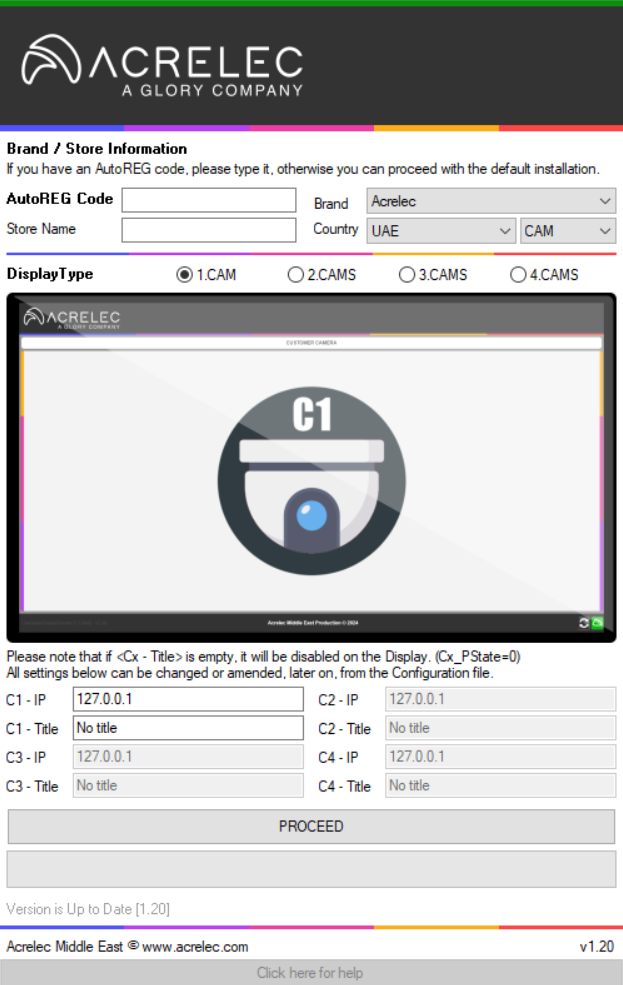
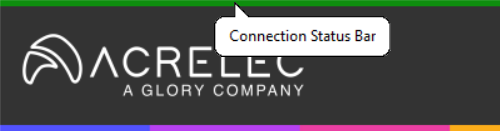
This Application require Internet, if connectivity is OK, the Connection Status Bar will be Dark GREEN and the Application can be used.
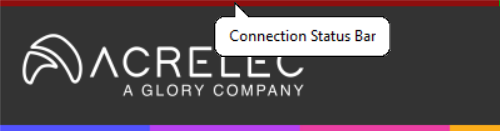
If connectivity is not OK, the Connection Status Bar will then be Dark RED and you cannot use the Application.
The CAM Selection allow to install the prerequisites and program for CameraServerDisplay.
As a reminder, CameraServerDisplay, is a Non-GUI App. that will generate the display of cameras feed based on different information, you can check more details on the CameraServerDisplay section.

CameraDisplayServer is an application that require a licence key to start
If you have an AutoREG Code, the licensing will be done automatically. If an error occur, a message with the error will be returned.
In case you don't have an AutoREG Code, you can still still proceed with the installation (leave the AutoREG field blank) but will need to communicate the [KEY] Source to receive a [KEY] License generated by CameraDisplayServer, you can check more details on the CameraServerDisplay section.
Since AutoREG Code are unique, when you use yours, the field Brand will be selected with the right choice accordingly.
Please put the Store Name, this field is mandatory and cannot be left empty
In case of a valid AutoREG Code used, this selection will be setup accordingly.
Otherwise, please select the appropriate Brand from the list.
Please select the appropriate Country from the list.
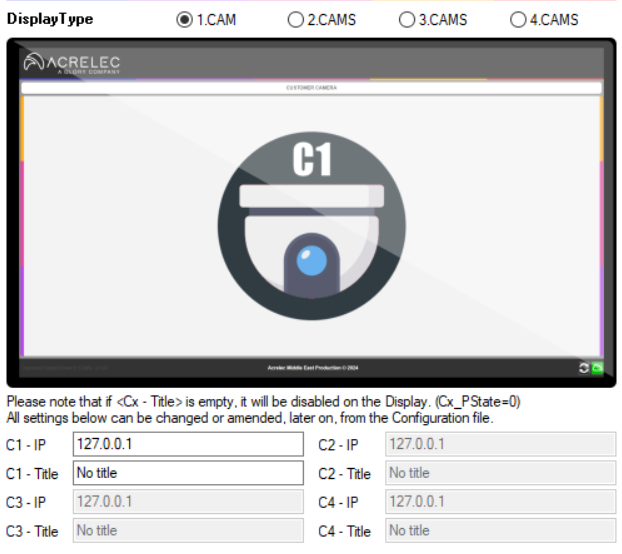
Here you can Select the final Display Type for CameraServerDisplay, all settings done here can be amended later on from the CONFIG file of CameraServerDisplay.
you can check more details on the CameraServerDisplay section.
You can select among 4 Display Type and each one will give, by default, the below.
| CONFIG | LAYOUT | USE CASES |
|---|---|---|
| 1.CAM | 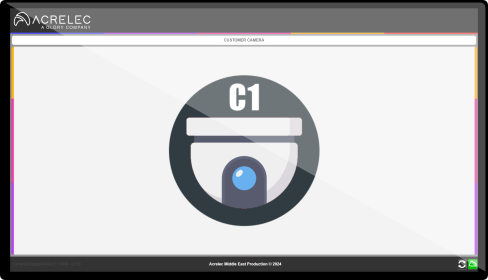 | Will be used to display one camera feed only, usually it's an Order Point Camera (COD or SSP) C1: Order Point Camera |
| 2.CAMS | 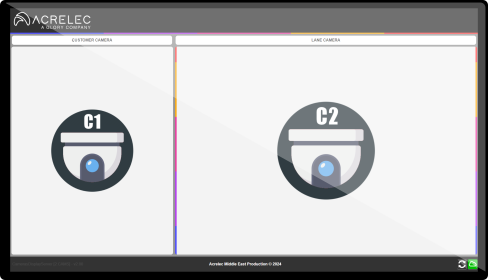 | Will be used to display two cameras feed, usually it's an Order Point Camera (COD or SSP) and a Lane Camera. C1: Order Point Camera C2: Lane Camera |
| 3.CAMS | 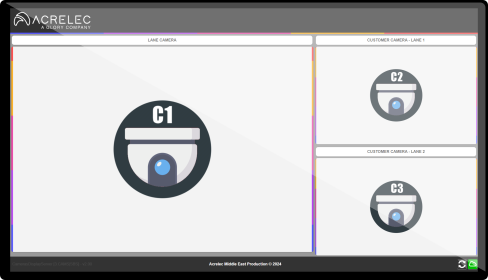 | Mostly used for Side-by-Side (SBS) Drive-Thru configuration or to be able to display three cameras feed, we can have two Order Point Cameras (COD or SSP) and a Lane Camera. C1: Lane Camera C2: Order Point Camera - Lane 1 C3: Order Point Camera - Lane 2 |
| 4.CAMS | 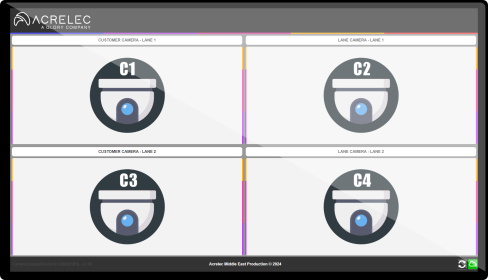 | Mostly used for Side-by-Side (SBS) Drive-Thru configuration or to be able to display for cameras feed, we can have two Order Point Cameras (COD or SSP) and two Lane Cameras. C1: Order Point Camera - Lane 1 C2: Order Point Camera - Lane 2 C3: Lane Camera - Lane 1 C4: Lane Camera - Lane 2 |
According to the Layout selected, one or several Cx will need to be completed.
Cx where x = the Camera Number, for example, C1.
Cx - IP is the IP (only) of the Camera and should be a valid IP, otherwise an error will be thrown.
Cx - Title is the Text Zone that will be display above the Camera (CUSTOMER CAMERA and LANE CAMERA in the example below)

If Cx - Title is left empty, the Text Zone above the Camera will not be displayed (see the example below)

One typical Configuration example for 2.CAM, could be.
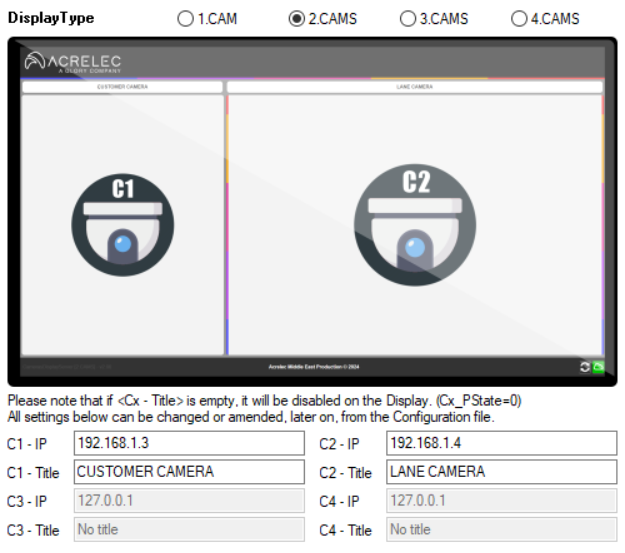
There is more settings than just this to adjust the Display, you can check more details on the CameraServerDisplay section.
The QT1 Selection allow to install the prerequisites for Qtimer 1.0 - US Version for Raising Cane's ONLY

AutoREG Code does not apply to QT1 selection
Please put the Store Name, this field is mandatory and cannot be left empty
Please select the appropriate Brand from the list.
Please select the appropriate Country from the list.
CameraDisplayServer is a Non-GUI Application (it has no graphical interface) and run in the background to generate a Display including one or more Cameras feed.
The Application has been mainly design with Axis camera brand in mind.
Whether you are using the CameraDisplayServer - Installer or performing a manual installation of CameraDisplayServer, you should end up with the same files, in the same directory.
The recommended directory to have CameraDisplayServer is C:\Applications\CameraDisplayServer
Inside we should have
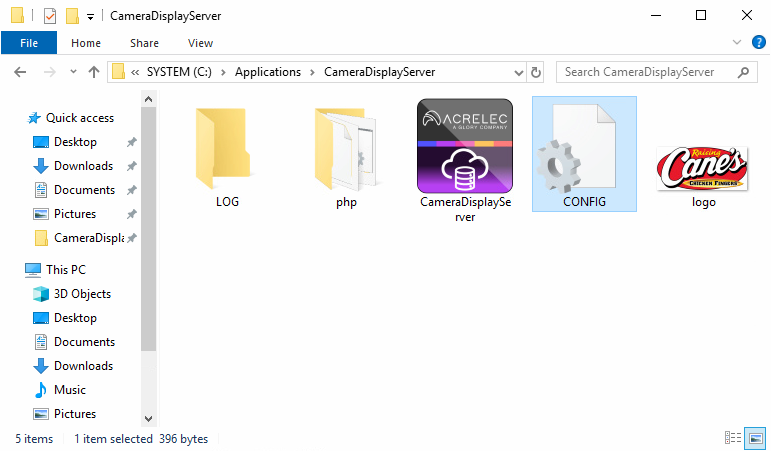
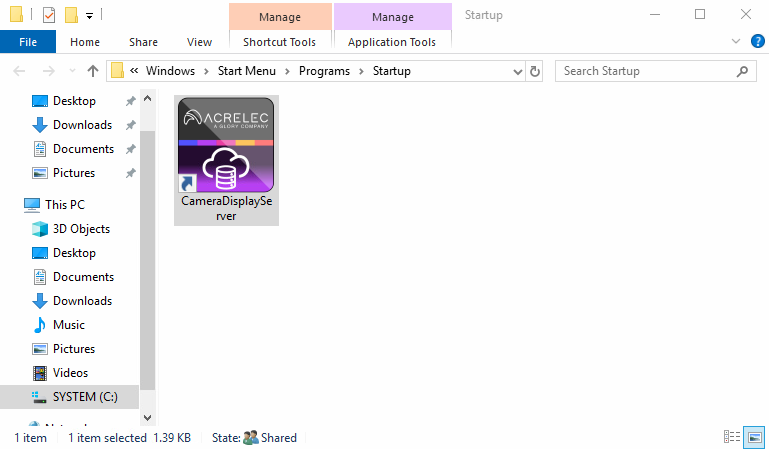
A Shortcut to the Application should also be present in the Startup folder.
If you have used a valid AutoREG Code in CameraDisplayServer - Installer then CameraDisplayServer will be registered automatically and you should get the start of the Camera Display.
If you have installed CameraDisplayServer manually or didn't use an AutoREG Code in CameraDisplayServer - Installer, at first start you will get a MessageBox telling that the Application is not yet registered.
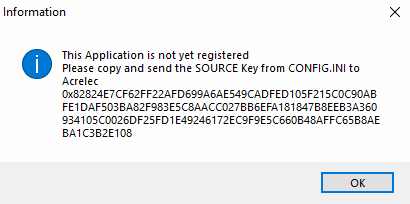
Open CONFIG.ini in C:\Applications\CameraDisplayServer and copy and send to Acrelec, the [KEY]Source, in order to receive the [KEY]License to register the Application.
Once you get your [KEY]License, copy and paste it in CONFIG.INI and save the file.

ConfigDisplayServer will generate the Display that will then be accessible at that address.
http://127.0.0.1:8082
When you have the Display running, you can Toggle the Fullscreen/Window mode by pressing [F11] or simply close the browser by pressing Alt+[F4]
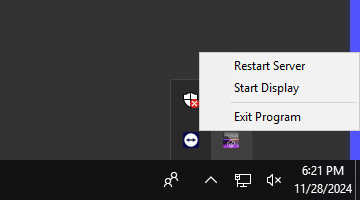
If you need to restart the Display after closing it, go to the Taskbar and look for the CameraDisplayServer icon.
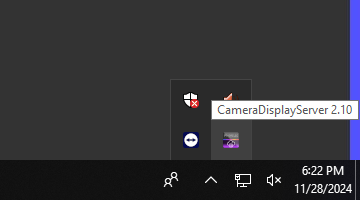
Right-Click on it to open to Menu and select your Option.
By editing CONFIG.ini located in C:\Applications\CameraDisplayServer, it is possible to amend or change the settings related to the Cameras and Display.
For that we will focus on 3 [SECTIONS]
Below, an example for 2.CAMS configuration
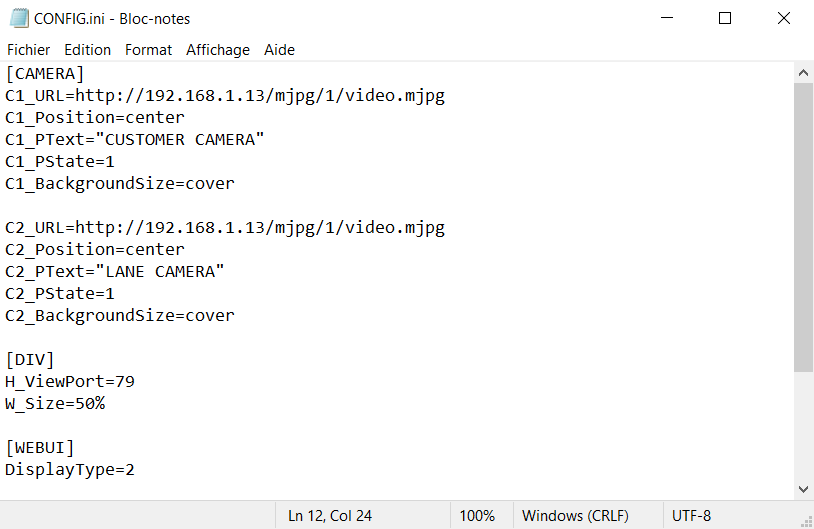
CameraDisplayServer - Installer will create default Key-Value based on the Display Type selection.
For Cx, where x = the Camera Number, for example, C1
| [SECTION]VALUE | 1.CAM[VALUE] | 2.CAMS[VALUE] | 3.CAMS[VALUE] | 4.CAMS[VALUE] |
|---|---|---|---|---|
| [CAMERA]Cx_Position | center | center | center | center |
| [CAMERA]Cx_BackgroundSize | cover | cover | cover | cover |
| [DIV]H_ViewPort | 79 | 79 | 79 | 74 |
| [DIV]W_Size | 100% | 35% | 65% | 50% |
| [WEBUI]DisplayType | 1 | 2 | 3 | 4 |
This is the full URL Path for the Camera Feed, any wrong entry will cause the URL to be invalid and the Offline Animation to be played instead of the Feed.
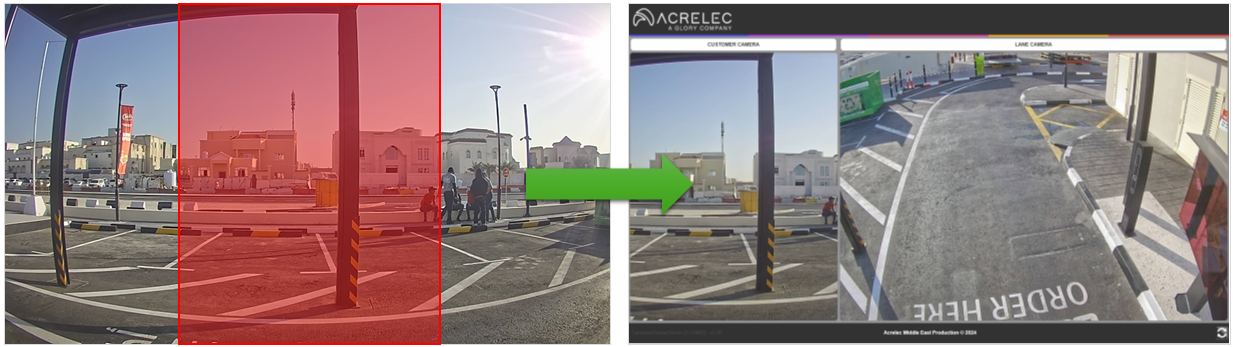
This Value will change the background-position of the Camera Feed.
For example, with the center Value we will Center the Camera Feed
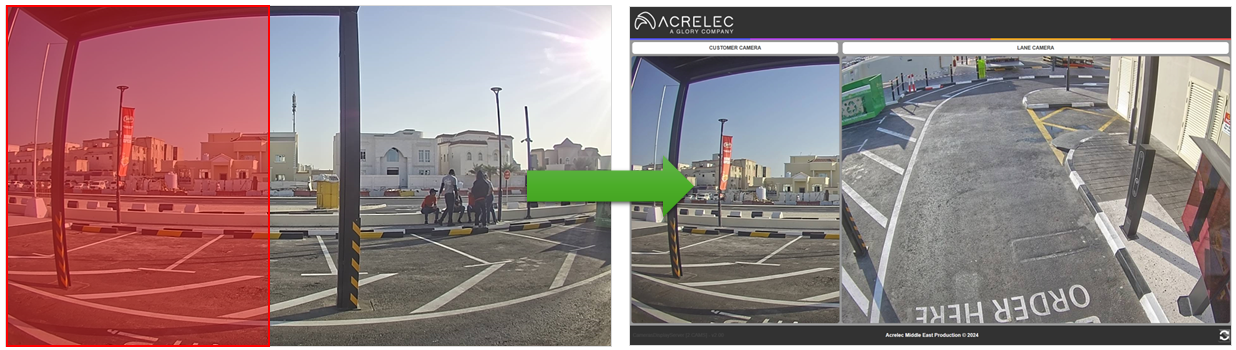
With a left Value, the Camera Feed will be Left-Aligned
More details can be found for the CSS background-position Property
CSS background-position Property
This represents the Text inside the Text Zone on Top of each Camera, according that the PState is not set to 0.
If set to 0, the Text Zone on Top of a Camera will NOT be displayed.
Be cautious that if a PState is Set to 0 while another one on the same Line is not, there will be an empty space in lieu of the Text Zone for the disabled one.
It is recommended to leave this Value to cover.
But if you would like to understand it, more details can be found for the CSS background-size Property
This Value represents the Height that the Camera Feed Zone will occupy. It is an expression in vh (Height of the ViewPort)
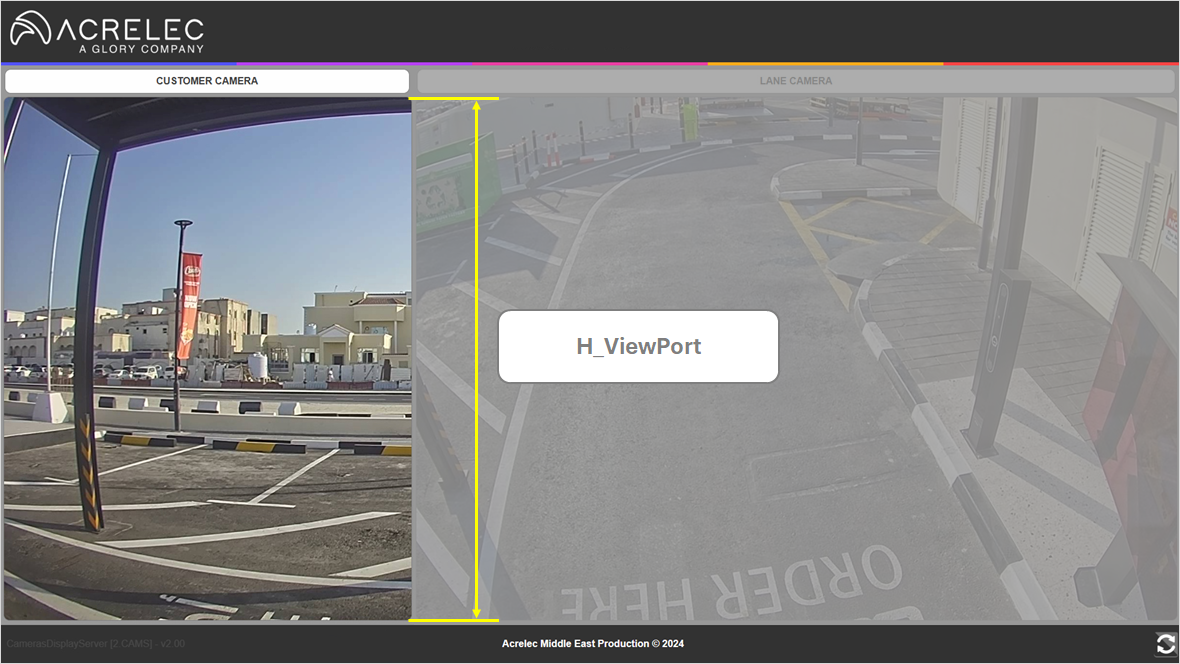
It is recommended to leave this Value unchanged as it is already calculated for best display on Acrelec PPC.
For 3.CAMS and 4.CAMS Display, the H_ViewPort is calculated that way:
This Value represents the Width of the first column (only) the remaining width will be used for the second column. We recommend to declare it in % in the CONFIG.ini.
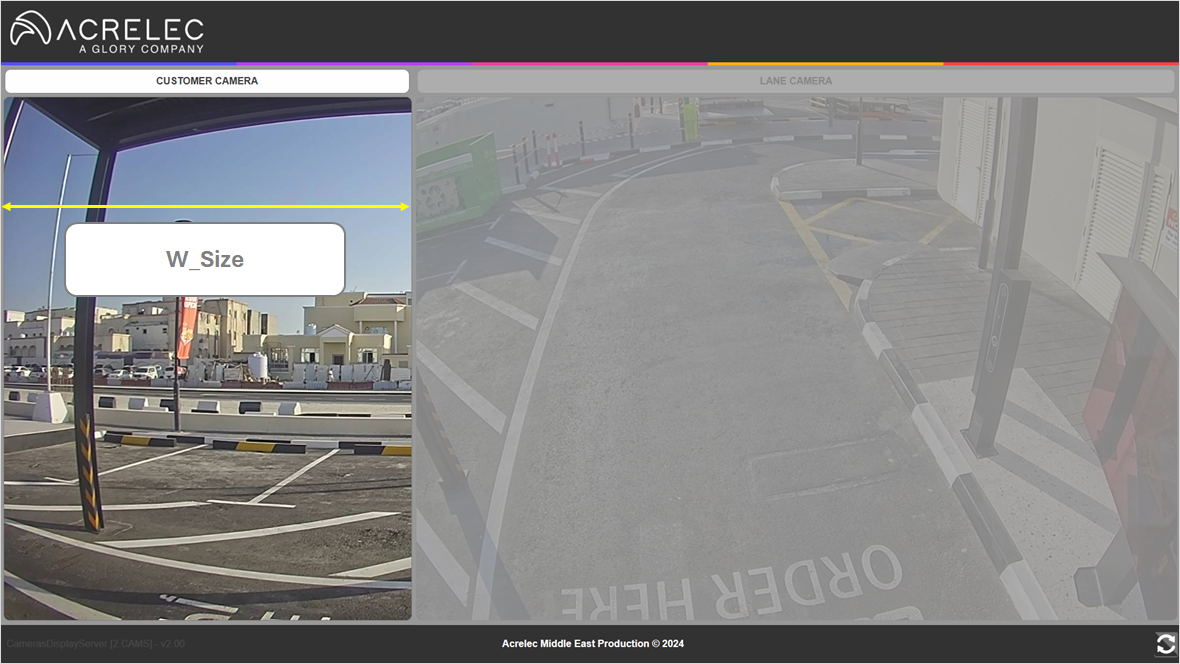
It is recommended to leave this Value unchanged as it is already calculated for best display on Acrelec PPC.
If you omit the % in your declaration, then the Value will be Pixel based.
This Value should match the DisplayType wanted
In case a Force Refresh need to be done, simply click on the Refresh Icon.
You can only do that on a PPC (not a monitor)
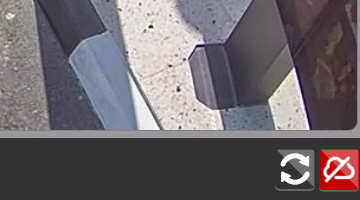
The Icon next to the Refresh Icon is the CameraDisplayServer Status
Green Icon, means the Server is UP and Running
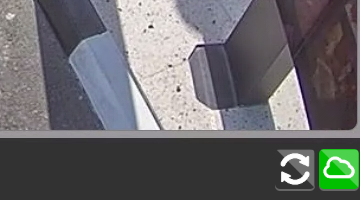
Red Icon, means the Server is stopped (Check above for how to restart the Server)
Acrelec Middle East Production © 2026